
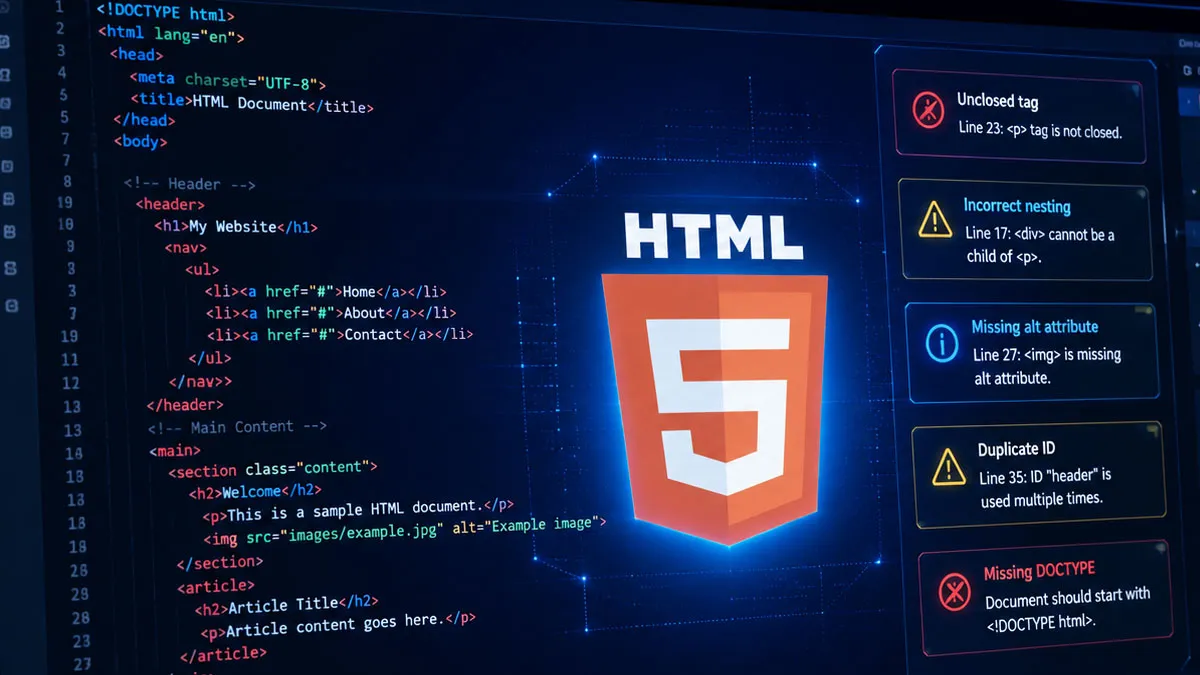
Learning HTML is usually straightforward until small markup mistakes begin producing confusing results in the browser. A missing closing tag, incorrect nesting, or poorly chosen element may not stop a page from loading, but it can change the document structure and make later styling, accessibility, or maintenance much harder.
The most useful way to learn these mistakes is to understand why they happen and what correct HTML is supposed to communicate. Browsers are forgiving and can repair some invalid markup while parsing it, but that does not mean the original code is correct. Clean HTML gives browsers, assistive technologies, search engines, and other tools a clearer document structure to work with.
1. Forgetting the Doctype
A common beginner mistake is starting an HTML document without the doctype declaration. In modern HTML, the standard doctype is placed at the beginning of the document. It tells the browser to use standards-oriented rendering rather than a legacy compatibility mode.
Leaving it out can cause the browser to use quirks mode, which may lead to unexpected rendering behavior. Starting every HTML document with the correct doctype is a simple habit that prevents this problem.
2. Using Incorrectly Nested Elements
HTML elements form a hierarchical structure, so nested elements need to be closed in the correct order. Beginners sometimes create overlapping elements when several tags are opened close together.
For example, if one element is opened inside another, the inner element should normally be closed before the outer element. Incorrect nesting may still appear to work because browsers can repair some errors automatically, but the resulting document structure may not be what the author intended.
Keeping indentation consistent makes these mistakes much easier to spot.
3. Forgetting Closing Tags
Many HTML elements use both an opening and a closing tag. Beginners sometimes forget the closing part, especially when a document becomes longer.
Paragraphs, headings, divisions, sections, and many other elements normally require an explicit closing tag. Although browsers can sometimes infer where an element ends, relying on automatic correction makes the source harder to understand and can cause unexpected results.
A good habit is to close an element immediately after creating it, then add its content between the two parts.
4. Adding Closing Tags to Void Elements
Not every HTML element can contain content. Some elements are known as void elements because they do not have closing tags in HTML.
Common examples include:
- Images
- Form inputs
- Line breaks
- Metadata elements
- Horizontal rules
Beginners sometimes add a closing tag automatically because they assume every HTML element needs one. Learning which elements are void prevents unnecessary or invalid markup.
5. Using the Wrong Element for the Job
HTML is more than a way to make text appear on a screen. Its elements communicate the meaning and structure of the content.
For example, a heading should be marked up as a heading, a paragraph should be a paragraph, and a list should use list elements. Using generic elements for everything may still produce a visually acceptable page, but it removes useful information from the document structure.
Choosing elements based on their purpose also provides a stronger foundation for accessibility and maintenance.
6. Using HTML for Tasks That Belong to CSS
Another frequent mistake is trying to control visual presentation directly through HTML when CSS is the appropriate tool.
HTML defines the structure and meaning of a page. CSS controls presentation, including colors, spacing, borders, typography, and layout.
For example, repeatedly adding line breaks simply to create large spaces is usually not a good approach. Proper spacing should generally be handled through CSS. Separating structure from presentation makes future design changes considerably easier.
7. Forgetting the Language of the Document
Beginners often overlook the language declaration for the page. Identifying the document language provides useful information to browsers, assistive technologies, and other software.
For an English page, the document can be identified as English through the appropriate language attribute. The same principle applies to other languages.
This is a small detail, but it contributes to a more accessible and properly structured document.
8. Creating a Poor Heading Hierarchy
Headings should describe the structure of the content, not simply determine how large text appears.
A page normally has a clear main heading, with major sections beneath it and relevant subsections beneath those sections. Choosing a heading level only because its default font size looks attractive can create a confusing structure.
CSS can change the visual appearance of headings without changing their semantic level. The structural hierarchy should therefore be determined by the organization of the content.
9. Ignoring Alternative Text for Images
Images are another common source of beginner mistakes. Adding an image is not only about displaying a picture; the image may also need to communicate information to people who cannot see it.
Alternative text provides a textual equivalent when an informative image cannot be perceived. The appropriate wording depends on the image’s purpose. A meaningful image should have concise alternative text describing the information it contributes, while a purely decorative image may use empty alternative text.
The goal is not to describe every visual detail. It is to preserve the image’s relevant meaning.
10. Using Attributes Incorrectly
HTML attributes provide additional information about an element, but beginners sometimes place them incorrectly or use them without understanding their purpose.
Problems can occur when an attribute is placed outside the opening element, when its value is written incorrectly, or when an attribute is used with an element for which it is not appropriate.
It is worth learning the purpose of commonly used attributes rather than treating them as arbitrary pieces of syntax. Understanding what an attribute actually does makes HTML easier to troubleshoot.
11. Forgetting to Check File Paths
Sometimes the HTML itself is correct, but a referenced resource cannot be found. This commonly happens with images, stylesheets, scripts, and linked documents.
A filename may be misspelled, a folder may be incorrect, or a relative path may point to the wrong location. On systems where filenames are case-sensitive, differences in capitalization can also matter.
When an image or another resource fails to load, check the path as well as the HTML element. Not every browser problem is a markup problem.
12. Assuming That Rendering Means the HTML Is Correct
One of the most important lessons for beginners is that a page looking correct in a browser does not necessarily mean the underlying HTML is valid.
Browsers are intentionally designed to be tolerant of imperfect markup. They may automatically repair certain errors and still display a usable page. However, the browser’s correction may differ from what the developer intended.
Poor HTML can eventually create problems with styling, accessibility, maintenance, and the document structure exposed through browser developer tools.
Using developer tools and an HTML validator can help identify problems that are difficult to notice visually.
A Simple Way to Avoid Common HTML Mistakes
You do not need to memorize every HTML rule before building your first website. A few consistent habits can prevent many common problems:
- Think about the meaning of an element before choosing it.
- Keep nested elements properly organized and indented.
- Close elements correctly when a closing tag is required.
- Learn which elements are void elements.
- Keep structure in HTML and presentation in CSS.
- Give informative images appropriate alternative text.
- Check file paths when resources fail to load.
- Use headings to represent content hierarchy rather than visual size.
- Inspect unexpected behavior with browser developer tools.
- Validate HTML when you need to locate structural errors.
Most beginner HTML mistakes come from treating HTML as a collection of visual formatting commands rather than as a language for describing the structure and meaning of a document. Once you start thinking in terms of hierarchy, semantics, relationships, and appropriate elements, these errors become much easier to recognize.
A clean HTML document is not simply one that looks right in a browser. It is one whose structure accurately represents the content it contains. That distinction becomes increasingly important as a website grows and needs to work well across browsers, devices, accessibility tools, and other systems. …